The basics
If you don’t know what Obsidian is, it’s a note taking application for desktop and mobile based on markdown files. I love it because of its file over app philosophy, its simplicity, speed and incredible plugins that allow me to customize the user interface and experience to my exact liking.
As opposed to other note-taking apps, you can make Obsidian yours through extensive customization and careful plugin use.
How I use Obsidian
I mainly use Obsidian as a daily journaling tool to recall what I did at any point in time. I don’t write much about how I feel but it’s a great way to recall anything and everything I did regarding my work or my life, from the largest task to the smallest details.
My mind has very bad short term memory and I think it’s a waste of energy to try and remember everything. So I use Obsidian to try and solve this issue.
When I started using Obsidian, I didn’t quite get it. I had heard about it from YouTubers shouting about the “Zettelkasten” or the second brain system. At first, it just seemed like a faster and more private Notion. And since my opinion of Notion is that every little thing took too much work, I decided to try using Obsidian as a second brain system.
So I started taking notes about everything and anything in a disorganized manner, with the hope that the system would take care of it and surfacing the relevant details at a click of the mouse.
And after a while, I got tired of doing this because I was doing something I didn’t see the value in.
In 2023, I started freelancing for Ragdoll Dynamics. One of the soft requirements as a fully distributed remote team was to keep a daily log of your day’s accomplishments and challenges so that the rest of the team could asynchronously find out what others were doing and if they could help in any way.
The daily logs were written through Gitlab’s web markdown editor; and although I quickly enjoyed writing and reading the notes, the experience was very poor: you had to manually create a new note everyday, rename it accordingly and write timestamps manually (more on that later).
I will cut to the chase, but I will share my Obsidian setup that has solved every problem for me.
On my laptop/desktop
Automatic naming
I’m lazy and I don’t want to create new files for every single day I journal/use Obsidian. Thankfully, Obsidian does that for me automatically with the help of the Daily notes core plugin.
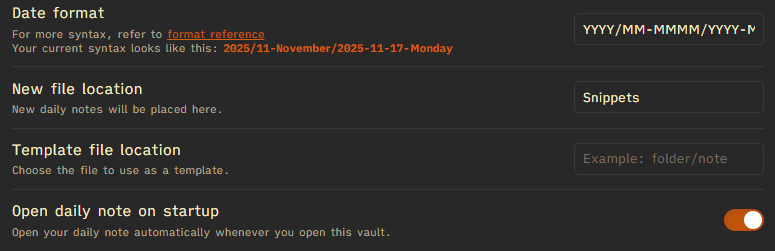
I set it up using the following method. I stored all of my daily notes in a folder called “Snippets” which is unique and short enough for me to always know what’s in there.
I set the Open daily note on startup to True so that when I start Obsidian and a note for that day does not yet exist, it is immediately created.
And the most important and powerful option is the Date format. Not only can you format the name of each daily note, but you can format the directories in which it is created. I use the following formatting:
YYYY/MM-MMMM/YYYY-MM-DD-ddddAnd if today’s date is Monday 17, November 2025, the new note will be created in: 2025/11-November/2025-11-17-Monday.
Thanks to this wonderful core plugin, all of my daily snippets are organized by year, month and even day. Adding the day in the filename is especially useful when you are trying to recall happened during the week or the weekend.

Attachment location
The great thing about attachments in Obsidian is that they are copied and backed up locally by default if you don’t sync. Everything is private.
However, the default behavior is to place all the attachements into the vault folder or in some dedicated folder of your choice. I don’t recommend this because it can make skimming your files impossible.
I set it up like this. Under Settings > Files and links > Default location for new attachment, choose In subfolder under current folder. This way, when you paste a screenshot (which are 99% of my Obsidian attachments) it will get moved automatically inside of an attachments directory located next to the note you pasted/linked the attachment in.
In my previous Obsidian vaults, I used to bother renaming the screenshots I’d paste in my notes. It was too time-consuming, but my OCD brain didn’t like the incomprehensible UUID-like random file names polluting my vault. So I initially tried using the Paste Image Rename plugin with the Auto rename toggle set to False and although I did enjoy renaming all of my attachements so that I always knew what they were about, I found that it disrupted my writing flow too much.
By only changing the image name pattern to {{fileName}} and setting Auto rename to True, I could simply paste my screenshot into my daily note and it would get:
- renamed with today’s date with number appended depending on how many attachments I created for that snippet
- nested inside of
attachmentsfrom that month’s folder
And thus, all of my attachments have clean names and are in a logical location in my vault.

Automatic timestamps
I like to add timestamps to my snippets as I progress along each day. It helps me track exactly what I did when and roughly how much time I spent or wasted on various things.
A timestamp in my notes looks something like this
Time is 21:40:13
At first, I used to type the whole line manually (minus the seconds) by looking at the clock on my laptop and typing each character. After a couple of months, that got very tedious and annoying so I looked into ways to do that automatically.
Obsidian supports Moment.js formatting for date and time, so I created a template in my Templates folder with the following content:
> Time is {{time:HH:mm:ss}}
>
>
Note that there are two empty lines at the bottom.
Now in combination with the Hotkeys for Templates plugin, I can add a keyboard shortcut to trigger any template defined by the core Templates plugin. So now I only have to hit Alt + T to add…
> Time is 21:45:42
Now thanks to the two empty line below the timestamp inside of my template, I can immediately keep typing my thoughts and everything will be neat. I have a couple of other templates I use for daily checklists for both personal and work purposes.

Code Editor Shortcuts
Another essential Obsidian community plugin that I cannot live without and is another main reason I cannot use Notion for daily note taking is Code Editor Shortcuts.
I’m not a software engineer or a regular web developer by any means but I enjoy the productivity features that a code editor has for working with text. Obsidian does not have such features out of the box but this community plugin offers everything I need, and more! This is by far one of the main reasons I enjoy using Obsidian. I can stay in the flow of my thoughts but whenever my mind switches to a mode where I want to edit text in a way that is similiar to a code editor, I can do that.
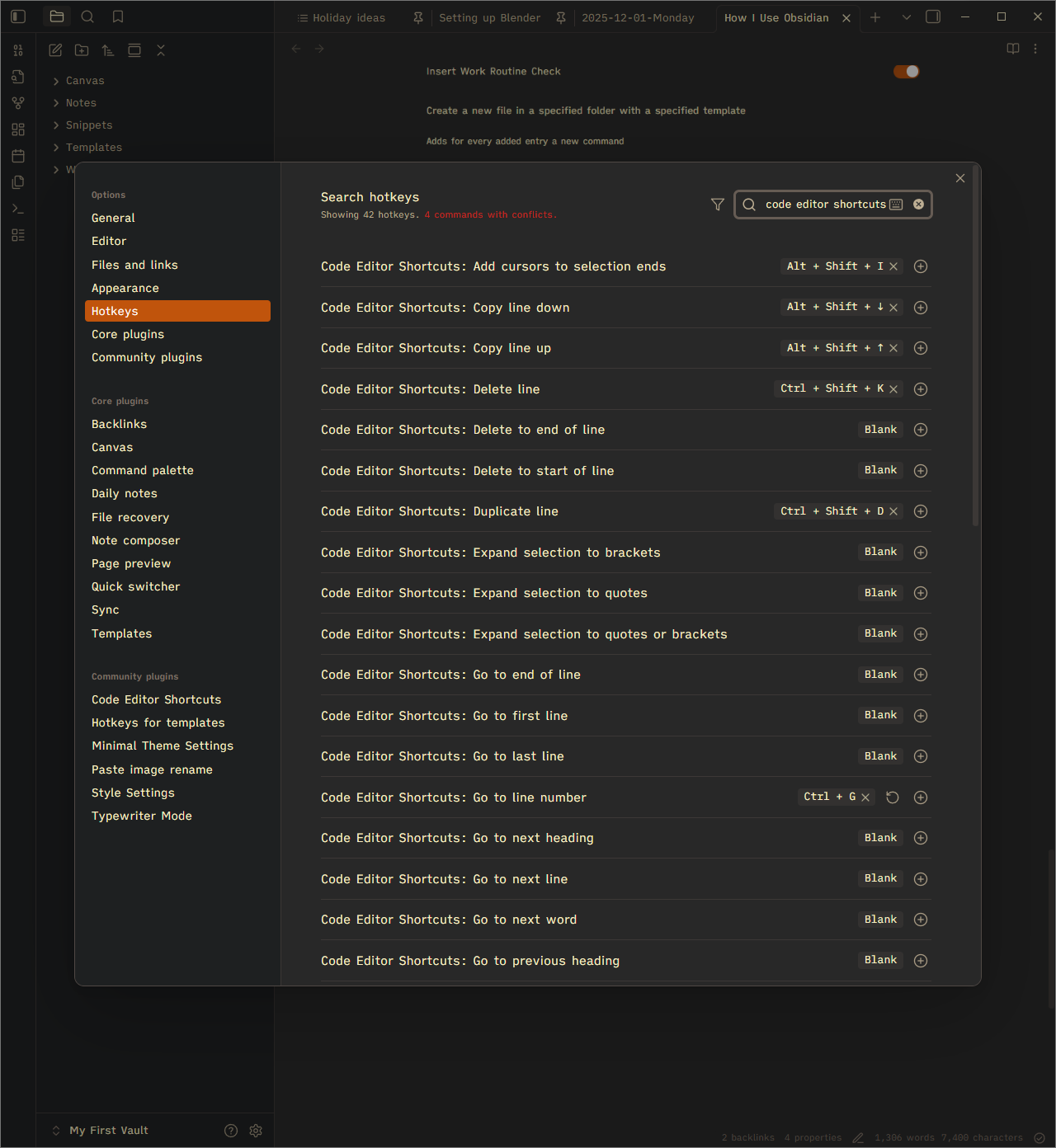
The Code Editor Shortcuts plugin does not have any options. It just add a plethora of commands inside of the Hotkeys section. Most of them are left blank by default and the ones I use the most are:
- Delete line set to
Ctrl + Shift + Klike in most code editors. - Copy line up/down (
Alt + Shift + Up/Down Arrow) - Insert cursor above/below (
Ctrl + Alt + Up/Down Arrow) - Insert line below, so that I can start typing on a new line immediately (
Ctrl + Enter) - Go to line number (
Ctrl + G) - Select word or next occurence (
Ctrl + D) - Select all occurences (
Ctrl + Shift + L)
Typewriter Mode
This plugin is more of a creature comfort than anything else. It simply keeps the current line you are editing at the same height in your Obsidian window. You can adjust how many lines from the top you would like to keep and even dim down other lines so you can focus only on what you’re typing.
Theming
I tried many themes over the last few years but Minimal Theme, along with the Minimal Theme Settings and the Style Settings plugins offer the most polished and flexible experience. I may want to make my personal theme in the future but it will be a side project requiring a few days of tweaking to get right.
Inside of the Minimal Theme Settings options, you can very quickly switch between a host of different themes that have the benefit of only changing the color palette. It’s nice every few weeks to change the theme when things start to look boring. I’ve experimented with other themes but they often make changes in the sizing and layout of certain UI elements that lower my short term productivity.
Fonts
What fonts you set is highly personal to each individual, so my recommendation is to experiment with a different set of sans-serif, serif and monospace fonts every few weeks until you find the set that look right for you.
For me, iA Writer is my go-to font choice:
- Interface font: iA Writer Quattro V Regular
- Text font: iA Writer Quattro V Regular
- Monospace font: iA Writer Mono V Regular
On my phone/tablet
Obsidian Sync
At first, I was against the idea of payihg for yet another subscription service just to access the files I’m supposed to own on a phone I’m supposed to own.
But since I missed the ability to journal while I’m on the go or access my snippets while I’m not at my computer, I decided to shell out the $8 per month for the $5.00 per month to give it a try.
For that money, you get a single synced vault with a total of 1GB of storage and a 5 MB maximum file size (which is OK for most screenshots, images, PDFs and very short/compressed video files attachments).

To give you a frame of reference, I’ve used Obsidian Sync every day since April 30th, 2025 and at the time of writing 8 months later, I am using just under half of my total storage capacity.

I thought initially that having my snippets on the go wouldn’t be more than a nice-to-have, but much like Raycast (which I will also write a setup article for), it grows on you over time as you discover its features.
One of the key things that convinced me to stay is my template for inserting the current time as a quote in my notes. Because the mobile app also supports both the core and the community plugins, I thought I could insert that right out of the box after sync had been completed, but you cannot use keyboard shortcuts such as Alt + R on the iOS keyboard…
Thankfully there are a couple of very handy features on the mobile version of Obsidian: the mobile toolbar and the Quick Action.
Mobile toolbar
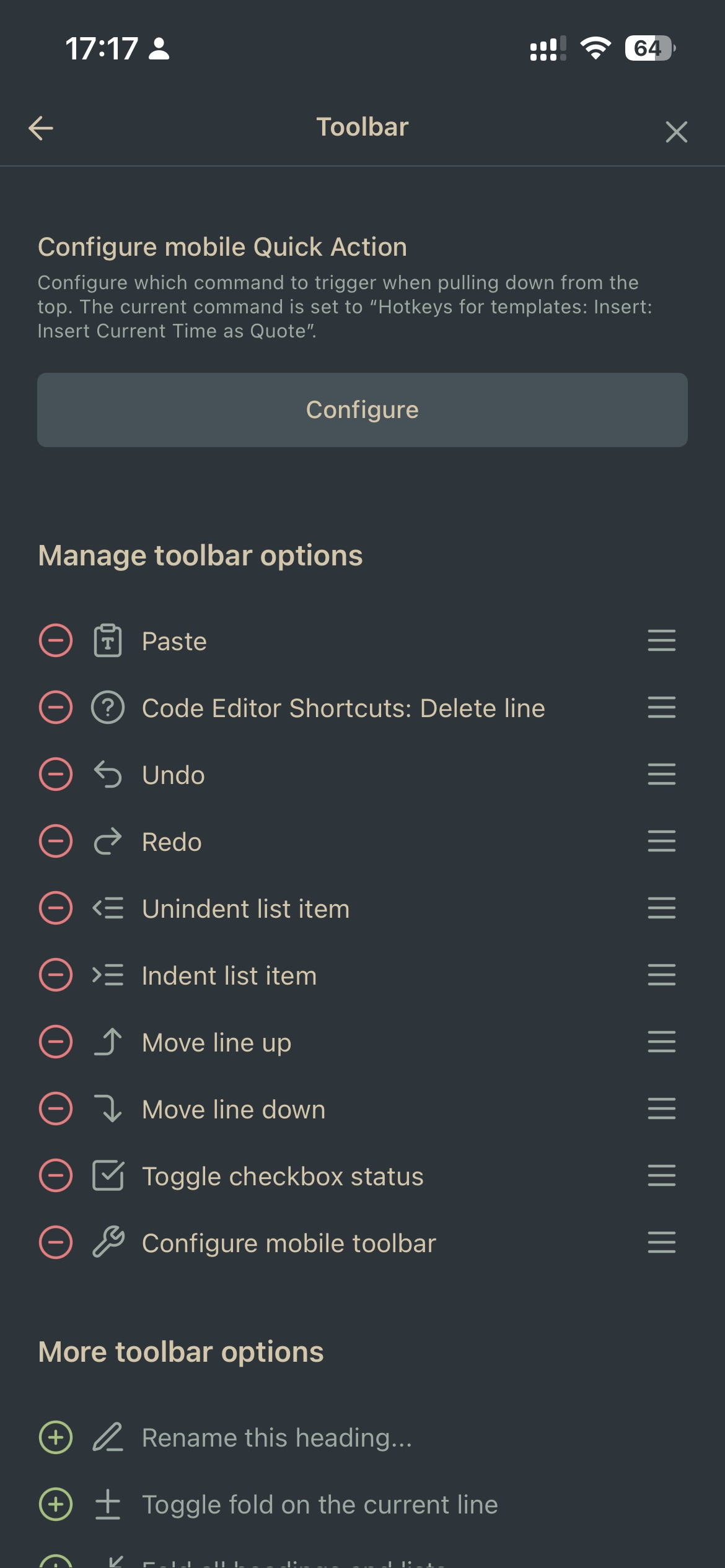
Just like Notion, the mobile experience in Obsidian offers a toolbar that appears right above your keyboard as you type. But unlike Notion, Obsidian lets you customize it to your liking. The screenshot below shows how my toolbar is set up. Note how I was able to add a command that is from a community plugin (Code Editor Shortcuts: Delete line).
The Mobile Quick Action
Obsidian mobile has some nice but hidden functionality. For example, you can navigate backwards and forwards using a two-finger left or right swipe gesture. But the best and most useful for me is the one-finger downwards swipe for the header bar. It triggers another a user-configurable action like in the mobile toolbar.
I set mine to that it inserts the current time as a quote while I’m typing. This way, I don’t have to remember which button is it on my mobile toolbar (custom actions such as these only display a generic ? icon) and I can immediately start typing my thoughts.
Here is a quick demonstration:
One small but nagging issue with Sync I keep running into is how long Sync can take. On desktop, it’s less of an issue since I always have Obsidian open. But on mobile, the sync process stops as soon as the mobile app is no longer in the foreground.
This means that I can be typing something down in the iOS app, then quickly switch to something else before Sync finishes; and a few minutes later, resume my work on the desktop application and wander where all that I just typed is. In some rare instances, you can have the contents of the same note duplicated inadvertently. It’s not very annoying but something to watch out for.
Conclusion
Obsidian is the fastest, most efficient, most effective and most customizable note-taking application there is.
If you put in the time and effort to explore its capabilities and make it truly yours, you will adapt to it and it will adapt to you. That’s what great software should do!